Blog
How to make a coloring book that KDP prints clearly
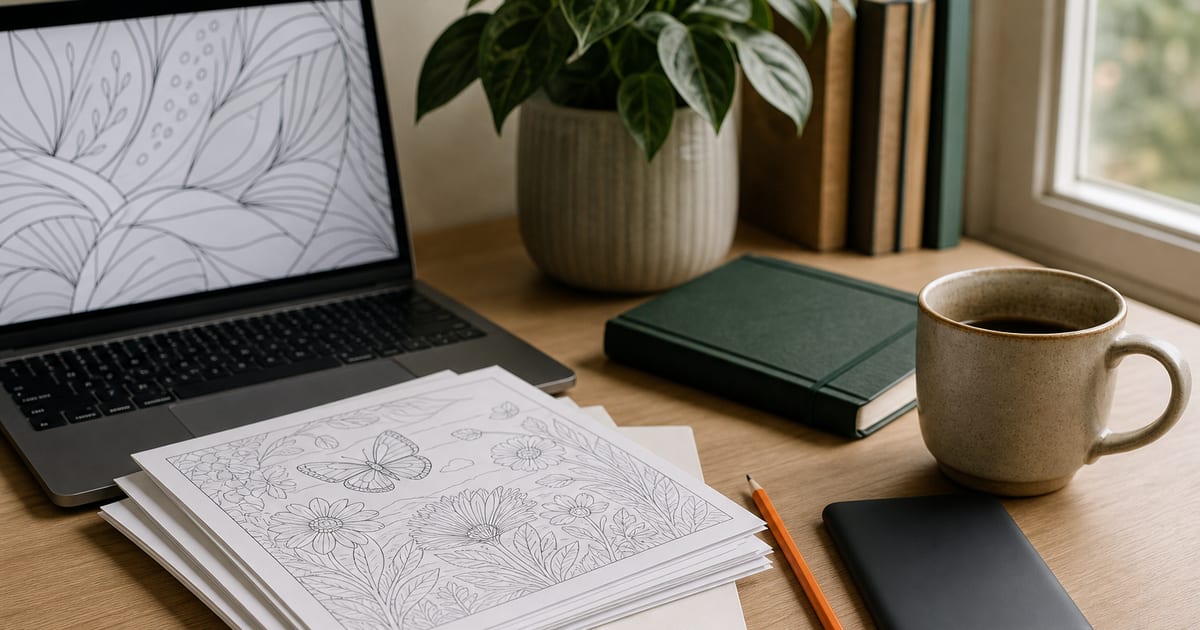
Learning how to make a coloring book starts with a production decision: who will color it, and where will they use it? A book for preschoolers needs large, open shapes. An adult botanical collection can carry denser detail, provided the lines still reproduce clearly.
Work backward from the printed object. Choose the trim size, build each page at final dimensions, reserve a blank reverse for every design, then prepare a PDF that survives KDP’s previewer without surprise margins or fuzzy lines.
1. Decide how to make a coloring book for a specific reader
A broad idea such as “animals” is hard to market and hard to design consistently. Narrow it to a recognizable promise, such as woodland animals for ages 4 to 7, large-print flowers for seniors, or 1950s kitchens for adult colorists. The reader determines the complexity of the linework, the page size, and the number of illustrations they expect.
Write a one-sentence brief before drawing: “This is a 30-page collection of simple ocean scenes for children aged 5 to 8.” Keep every illustration inside that promise. Avoid mixing highly detailed mandalas with toddler-level shapes in the same book.
| Audience | Useful design choice | Typical theme direction |
|---|---|---|
| Ages 3 to 5 | Large enclosed shapes and very few small gaps | Farm, vehicles, friendly animals |
| Ages 6 to 9 | Simple scenes with clear objects to color | Dinosaurs, space, fantasy pets |
| Adult beginners | Medium detail with generous white space | Flowers, cozy homes, travel |
| Experienced adult colorists | Dense repeatable detail and varied compositions | Botanicals, architecture, patterns |
Make a thumbnail list for all pages before creating finished art. It exposes repeated poses and helps you alternate close-ups with full scenes.
2. Plan your coloring book page count and trim size
For a KDP paperback, 8.5 by 11 inches is a familiar coloring-book size because it gives hands room to work. A 8 by 10 inch trim can suit simpler children’s pages or a more compact gift book. Choose the trim size before you create a single final illustration.
Count the interior in printed pages, including the title page, copyright page, blank backs, and any test-color page. For example, 30 single-sided designs plus a title page and copyright page produces 62 interior pages when the designs occupy odd-numbered pages and their reverses remain blank.
Plan the paperback separately from a digital companion. A coloring interior is designed for print, while screen-first files use different layout assumptions. This guide to Which ebook format to write helps clarify the distinction when you intend to offer both versions.
Build a simple page map
- Reserve the first pages for title, copyright, and an optional ownership page.
- Place each coloring design on a right-hand, odd-numbered page.
- Insert a fully blank page immediately after every design.
- Leave the final page blank if your layout needs it to maintain the sequence.
3. Create line art that prints well
Draw at the final trim size, with a 300 DPI raster canvas if you are using Procreate, Photoshop, or another pixel-based app. Vector files from Illustrator, Affinity Designer, or Inkscape can remain crisp when exported correctly. Keep linework solid black or very dark gray for a black-and-white interior.
Thin lines that look elegant on a bright monitor can disappear on paper. At final size, inspect small features such as whiskers, leaves, facial details, and pattern borders at 100 percent zoom. Simplify crowded intersections, close accidental gaps in enclosed areas, and delete stray marks outside the composition.
Give colorists usable regions. Tiny slivers between lines are frustrating, while huge unbroken spaces can feel unfinished. Add visual variety through different scenes and scales rather than relying on fragile micro-detail.
When an illustration begins with an AI-generated repeat or reference, use the Free AI pattern check before finalizing it. Then inspect the result manually for warped contours, unintended signatures, and duplicate objects.
4. Set up single-sided coloring pages and safe margins
Single-sided pages protect the next design from markers and heavy pencils. In the interior PDF, every illustration needs a blank reverse page, even if that blank page feels wasteful during layout. It is part of the product experience readers expect from a marker-friendly coloring book.
Keep important lines away from the binding edge. A generous inside margin prevents an animal face, central mandala, or border detail from disappearing into the gutter. Use a safe margin around all edges, then verify the current KDP minimum requirements before upload.
Use bleed only when artwork is meant to reach the trimmed edge. A page with a white border is usually easier to set up without bleed and gives novice colorists a calmer frame. Choose one approach for the full interior rather than switching page by page.
Do not place page numbers on the reverse of a design if you want that reverse to function as a genuinely blank protective sheet.
5. Export a print-ready PDF and check every page
Export the interior as one PDF, in page order, at the chosen trim size. Open the exported file outside your design software and scroll through it page by page. The PDF is the file KDP evaluates, so the source document alone is not proof that the book is ready.
| Check | Pass condition | Common fix |
|---|---|---|
| Page size | Every page matches the selected trim size | Resize the source document and export again |
| Line quality | Lines remain sharp at 100 percent zoom | Increase resolution or export from vector artwork |
| Blank reverses | Each design is followed by an empty page | Insert a blank page after each illustration |
| Margins | Important detail stays clear of every edge | Move or scale the composition inward |
| Page order | Artwork appears on intended right-hand pages | Rebuild the page map before export |
Print several representative pages on a home printer at 100 percent scale. Test an intricate page, a page with large open shapes, and a page with an edge border. This practical test catches weak lines and cramped margins faster than a screen review.
6. Publish a coloring book on KDP
Choose Paperback in your KDP Bookshelf and enter the title, contributor name, description, keywords, and categories. Select the same trim size, paper option, ink type, and bleed setting that your interior PDF was built for. White paper and black-and-white ink are common choices for line-art interiors, though your decision should match the reader and the current KDP options in your marketplace.
Upload the interior PDF, then create a separate full-wrap cover. The spine width depends on final page count and paper selection, so wait until the interior is settled. Use KDP’s Print Previewer to inspect the gutter, trim area, blank reverses, and cover alignment.
For current file rules and publishing requirements, consult Amazon KDP Help before approving the book. Its requirements can change, especially around supported specifications and printing options.
If you need a walkthrough of the account and listing screens, Publish an ebook on Amazon KDP, step by step covers the shared setup process. Use the paperback workflow for the print edition rather than uploading the coloring interior as a Kindle ebook.
7. Order a proof and make final corrections
Use the online preview to catch technical issues, then order a physical proof when possible. Paper texture, ink weight, gutter depth, and cover color are easier to judge in your hands. Color one page with the materials your buyer is likely to use, especially if you describe the book as marker-friendly.
Correct one master file, export a new PDF, and upload the replacement. Keep a versioned folder such as coloring-book-v1, coloring-book-v2-proof, and coloring-book-final so an older interior does not get uploaded by mistake.
A finished book readers can enjoy using
A successful coloring book is pleasant to hold and straightforward to color. A focused theme, consistent line art, blank reverse pages, and a carefully checked PDF do more for the reader than extra filler pages.
If you are comparing production routes before commissioning help, review create-ebook pricing and decide what work you will supply yourself. Keep ownership records for every illustration, font, and licensed asset used in the final files.
Frequently asked questions
How many pages should a coloring book have?
Thirty designs is a practical starting point for a first book, especially when each design has a blank reverse. Include title and copyright pages in the total interior page count, then verify that the final count meets KDP's current paperback requirements.
Should coloring book pages be single-sided?
Single-sided pages are strongly preferred when readers may use markers or heavy coloring tools. Put a fully blank page after every design so ink has less chance of affecting the next illustration.
What resolution should coloring book line art use?
Use 300 DPI at the final printed dimensions for raster artwork. Vector artwork is also useful because it stays sharp when exported to a correctly sized PDF.
Can I publish a coloring book as a Kindle ebook?
You can create a digital edition, but a standard Kindle ebook is not the natural format for a book intended to be colored on paper. Treat the paperback as the primary product and create a separate digital file only if it offers a clear use case for your audience.
Do I need to order a proof before publishing on KDP?
A proof is the most reliable way to assess the physical coloring experience, including paper feel and line visibility. The online preview is still essential for checking margins, page order, and cover placement before you order one.